
Enable an SFTP server and connect to it
SFTP lets you upload and download files on your Windows VPS from your PC, with FileZilla or WinSCP, without going through Remote Desktop. It’s the handiest way to upload a FiveM server, resources or backups.
Windows Server 2025 already includes the OpenSSH server (which provides SFTP): you only need to enable it, once.
Step 1: enable the SFTP server on the VPS
Section titled “Step 1: enable the SFTP server on the VPS”Connect to the VPS over Remote Desktop, then pick one of the two methods.
Method A: with Server Manager
Section titled “Method A: with Server Manager”- Open Server Manager (it opens at startup, otherwise Start menu → Server Manager)
- Click Local Server in the left menu
- In the properties list, find Remote SSH Access: it shows Disabled
- Click Disabled, then enable access in the window that opens
- Click Refresh (arrow at the top): the line should show Enabled
Method B: with PowerShell
Section titled “Method B: with PowerShell”Open PowerShell as administrator (right-click the Start menu → Terminal (Admin)) and paste these commands:
# 1. Check that the OpenSSH server is installedGet-WindowsCapability -Online | Where-Object Name -like 'OpenSSH.Server*'
# 2. Install it if the line says "NotPresent" (otherwise skip)Add-WindowsCapability -Online -Name OpenSSH.Server~~~~0.0.1.0
# 3. Start the service and launch it automatically with WindowsStart-Service sshdSet-Service -Name sshd -StartupType Automatic
# 4. Check it runs: Status should say "Running"Get-Service sshd
Check the Windows firewall
Section titled “Check the Windows firewall”Enabling it normally creates a firewall rule for port 22. Check it in PowerShell:
Get-NetFirewallRule -Name 'OpenSSH-Server-In-TCP' | Select-Object Name, EnabledIf nothing is found, create the rule:
New-NetFirewallRule -Name 'SSH1' -DisplayName 'SSH1' -Enabled True -Direction Inbound -Protocol TCP -Action Allow -LocalPort 22Step 2: connect from your PC
Section titled “Step 2: connect from your PC”With FileZilla
Section titled “With FileZilla”Download FileZilla Client from filezilla-project.org, then fill the Quickconnect bar at the top:

- Host:
sftp://followed by the VPS IP, for examplesftp://203.0.113.30 - Username:
Administrateur - Password: your password
- Port:
22
Click Quickconnect. On the first connection, FileZilla shows the server’s host key: tick Always trust this host then OK.
With WinSCP
Section titled “With WinSCP”Download WinSCP from winscp.net, then in the Login window:
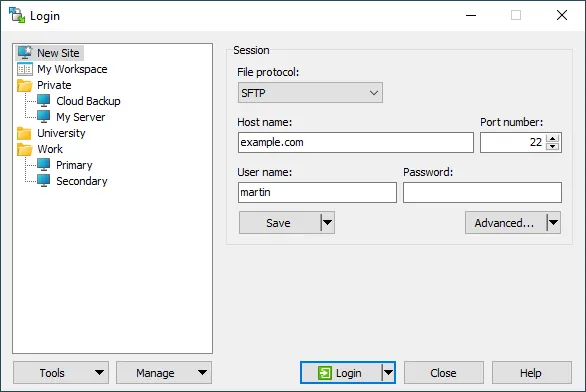
- File protocol:
SFTP - Host name: the VPS IP
- Port number:
22 - User name:
Administrateur - Password: your password
Click Save to keep it, then Login. Accept the host key on the first connection (Accept).
From the command line
Section titled “From the command line”Windows 10/11, macOS and Linux include an SFTP client:
sftp Administrateur@203.0.113.30Where are my files?
Section titled “Where are my files?”Over SFTP you land in the account’s home folder: C:\Users\Administrateur. Windows paths are written with / and a slash before the drive letter:
| Windows folder | Path to type in SFTP |
|---|---|
C:\Users\Administrateur\Desktop |
/C:/Users/Administrateur/Desktop |
C:\FXServer |
/C:/FXServer |
Root of drive C:\ |
/C:/ |
In FileZilla or WinSCP, type the path in the address field of the right-hand (server) panel then Enter.
Going further: SSH key login
Section titled “Going further: SSH key login”An SSH key replaces the password and is much safer. On Windows, an administrator’s public key does not go in the user folder, but in a shared file.
- On your PC, create a key if you don’t have one:
Fenêtre de terminal ssh-keygen -t ed25519 - Copy the content of the created
.pubfile (for exampleC:\Users\YourName\.ssh\id_ed25519.pub) - On the VPS, in an admin PowerShell, add it to the administrators file and set its permissions:
Fenêtre de terminal Add-Content -Path C:\ProgramData\ssh\administrators_authorized_keys -Value 'ssh-ed25519 AAAA... your-pc'icacls.exe C:\ProgramData\ssh\administrators_authorized_keys /inheritance:r /grant 'Administrators:F' /grant 'SYSTEM:F' - In FileZilla or WinSCP, choose key file authentication and select your private key
Troubleshooting
Section titled “Troubleshooting”| Message | Likely cause | Fix |
|---|---|---|
| Connection timed out / Network error | sshd service stopped or port 22 blocked |
Get-Service sshd should say Running. Check the Windows firewall rule and your Anti-DDoS port rules |
| Connection refused | The OpenSSH server isn’t enabled | Redo step 1 |
| Authentication failed / Access denied | Wrong user or password | The user is Administrateur, not Administrator. Check the password, or change it in the Security tab |
| Refused after enabling restricted access | Your IP isn’t in the admin IP list | Add it in Restricted access |