
Connect via SFTP
SFTP is ideal for uploading lots of files or large resources.
Your SFTP details
Section titled “Your SFTP details”The SFTP address is shown at the top of the Files page:
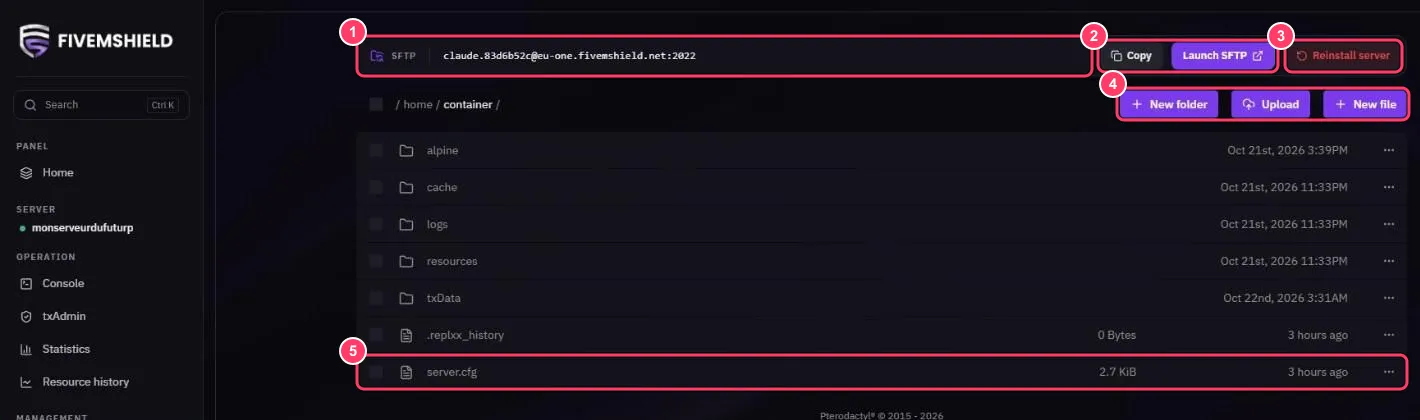
It looks like user.serverid@eu-one.fivemshield.net:2022. For example, claude.83d6b52c@eu-one.fivemshield.net:2022 means:
| Field | Value |
|---|---|
| Protocol | SFTP |
| Host | eu-one.fivemshield.net |
| Port | 2022 (not 22) |
| Username | claude.83d6b52c (your username dot the server ID) |
| Password | Your Game Panel account password |
With FileZilla
Section titled “With FileZilla”- Open FileZilla
- In the quick connect bar, fill in:
- Host:
sftp://eu-one.fivemshield.net - Username: your SFTP username
- Password: your Game Panel password
- Port:
2022
- Host:
- Click Quickconnect and accept the server fingerprint
With WinSCP
Section titled “With WinSCP”- Open WinSCP and create a new site
- Protocol SFTP, host
eu-one.fivemshield.net, port2022, your SFTP username and password - Click Login
Sign in with an SSH key
Section titled “Sign in with an SSH key”You can use an SSH key instead of a password: add your public key under Account → SSH keys. See Manage your account.