
Enable and use txAdmin
txAdmin is FiveM’s official web panel to manage your server: players, bans, scheduled restarts, resources… On the Game Panel, you can enable it yourself in one click.
1. Enable txAdmin
Section titled “1. Enable txAdmin”- In the server menu, open txAdmin
- Click ENABLE TXADMIN
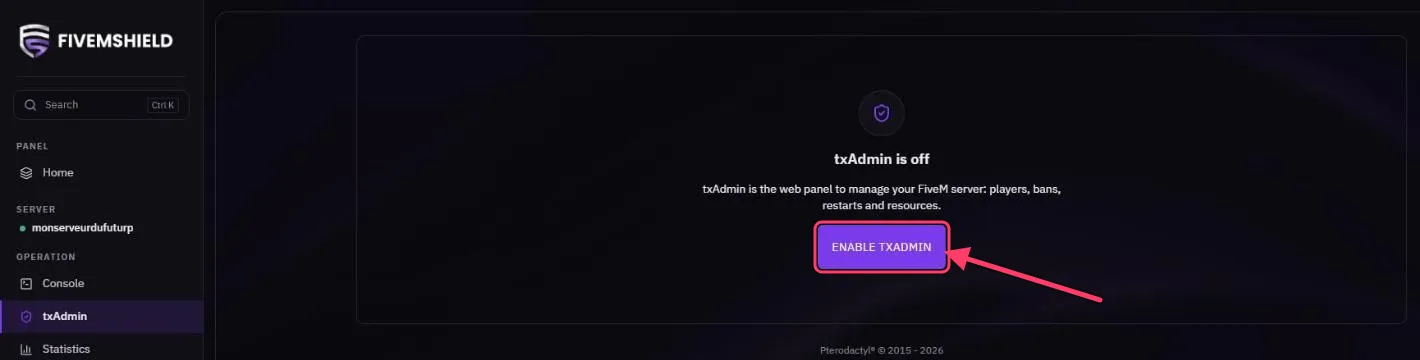
The panel automatically assigns a dedicated port to txAdmin on your server (between 40120 and 40125).
2. Restart the server
Section titled “2. Restart the server”Click RESTART in the console. The txAdmin port only opens after this restart.
3. Open txAdmin
Section titled “3. Open txAdmin”Once the server has restarted, an Open txAdmin button appears in the CONNECT LINK bar under the console. It opens txAdmin in a new tab.
4. First-time setup
Section titled “4. First-time setup”On first launch, txAdmin asks for a PIN code: it is shown in the panel console.
- Copy the PIN from the console and paste it into txAdmin
- Link your Cfx.re account to create the admin account
- In the setup wizard, choose Existing Server Data if your server is already configured, then point it to the server folder and your
server.cfg